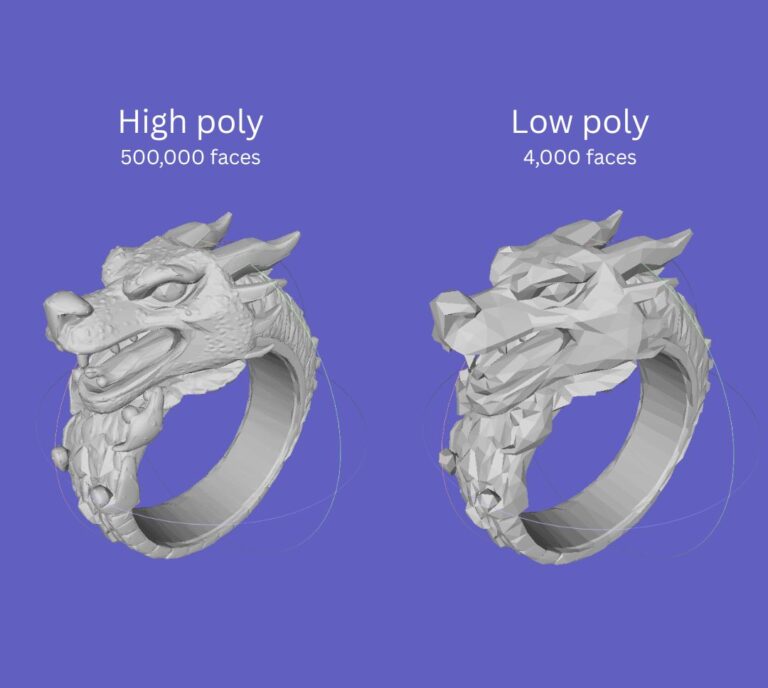

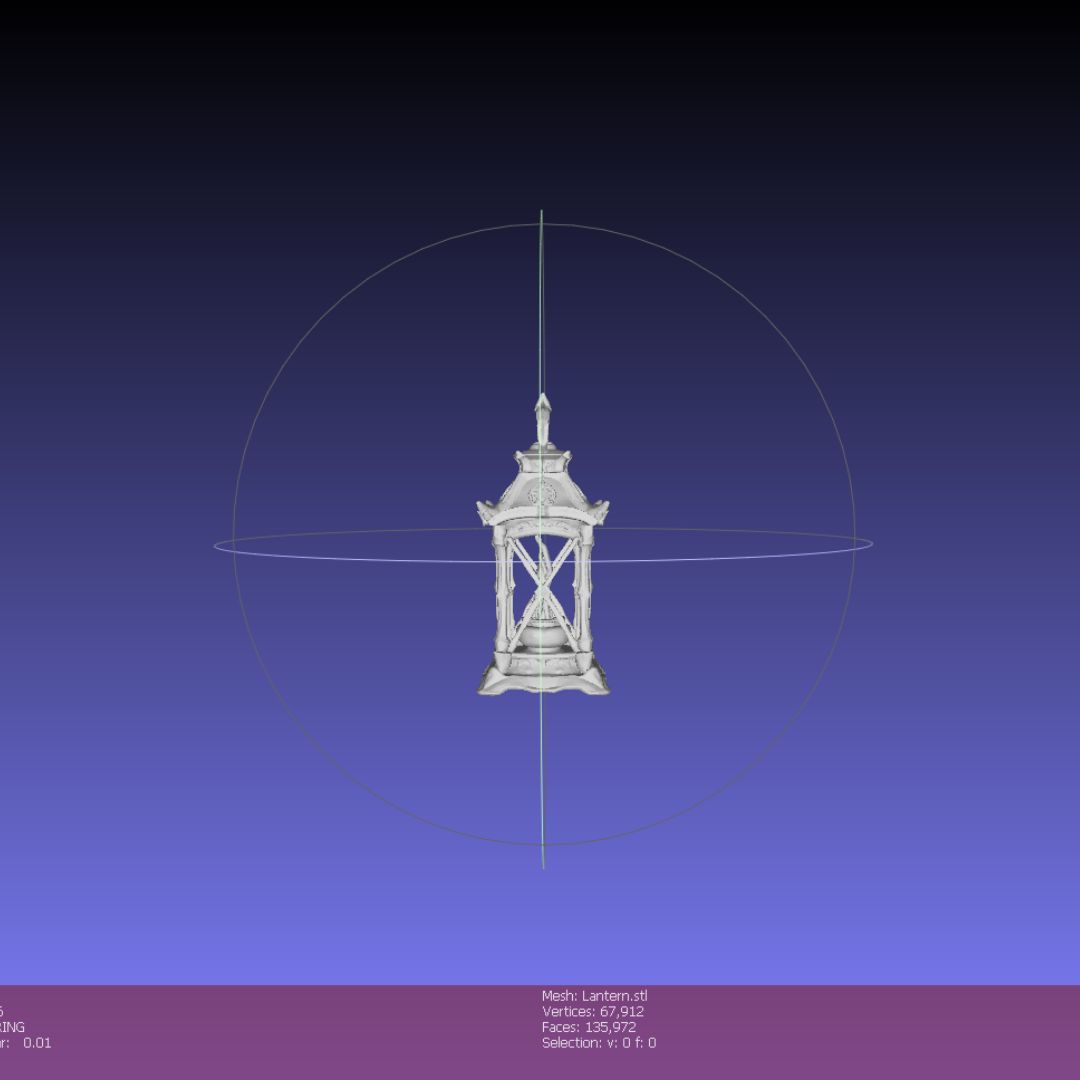



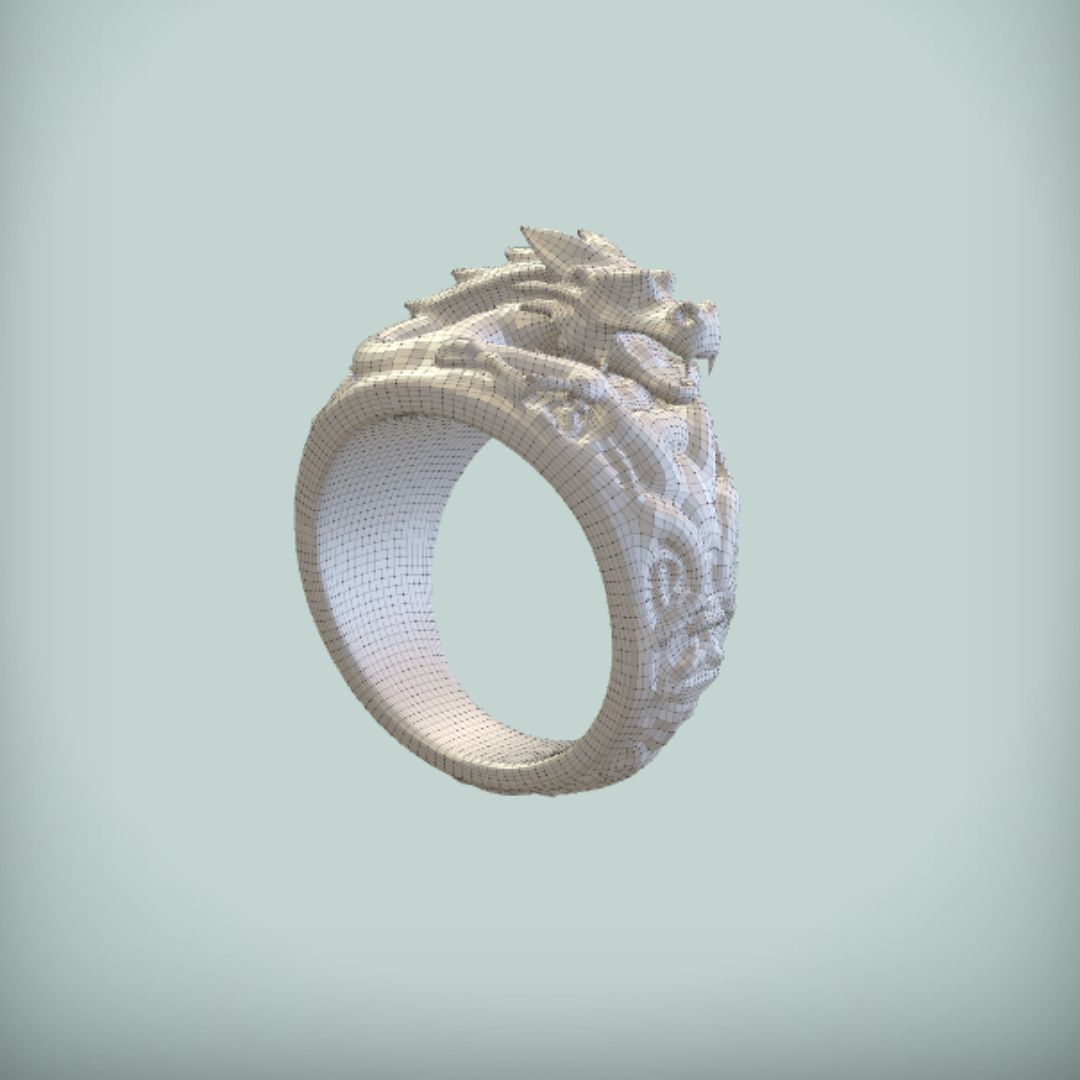
If your STL file (or other 3D file) is too large to upload, slow to process, or difficult to work with, chances are it’s overly high-poly. This is a common issue, especially with files exported from sculpting software, high-resolution scans or generative AI.
The good news: you can compress file size significantly without noticeable quality loss by simplifying the mesh.
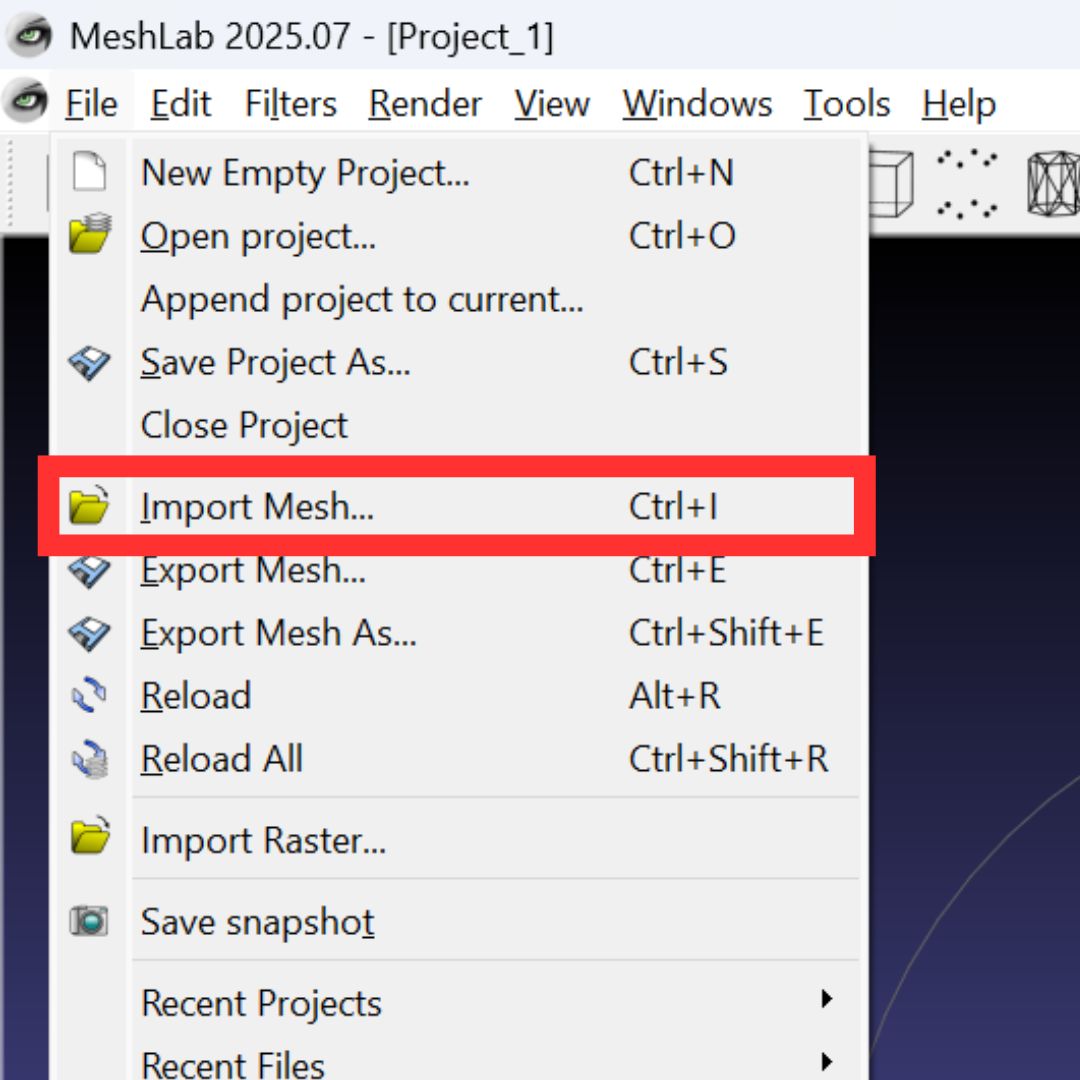
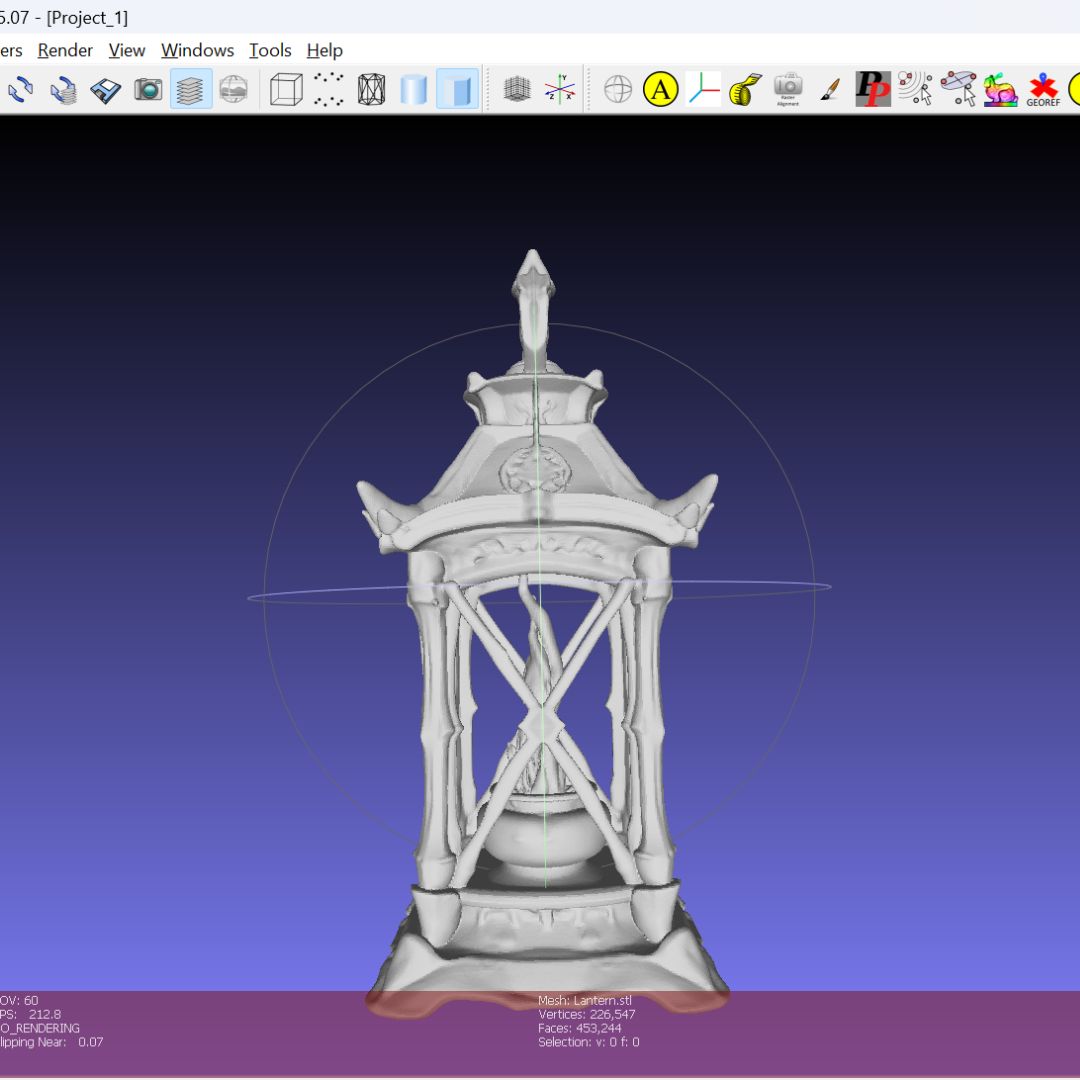
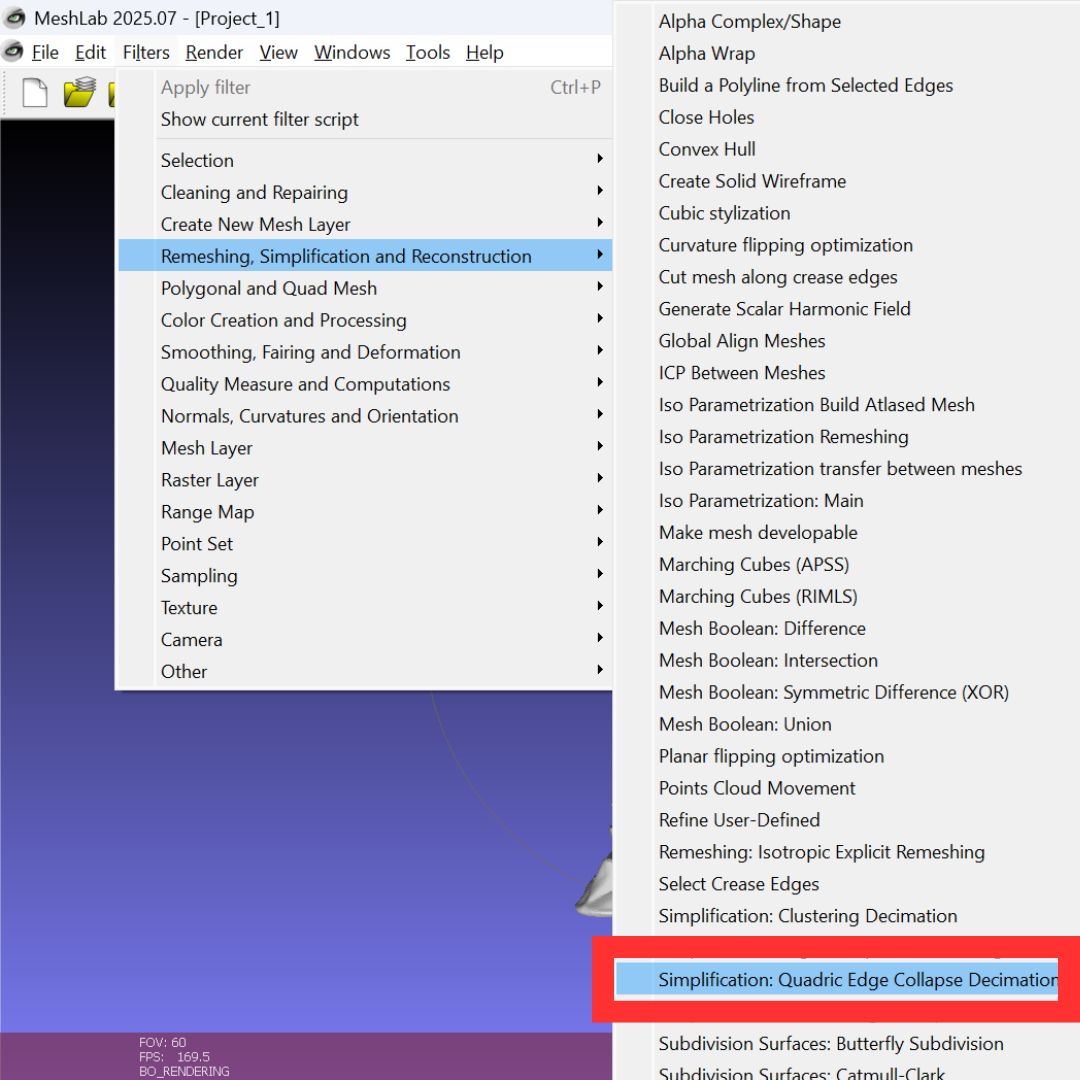
One of the best tools to do this? We use MeshLab
3D files don’t store textures or colors, only geometry. That means:
Many designs contain far more polygons than necessary, especially when:
In practice, most models can be reduced by 50–80% with no visible difference.
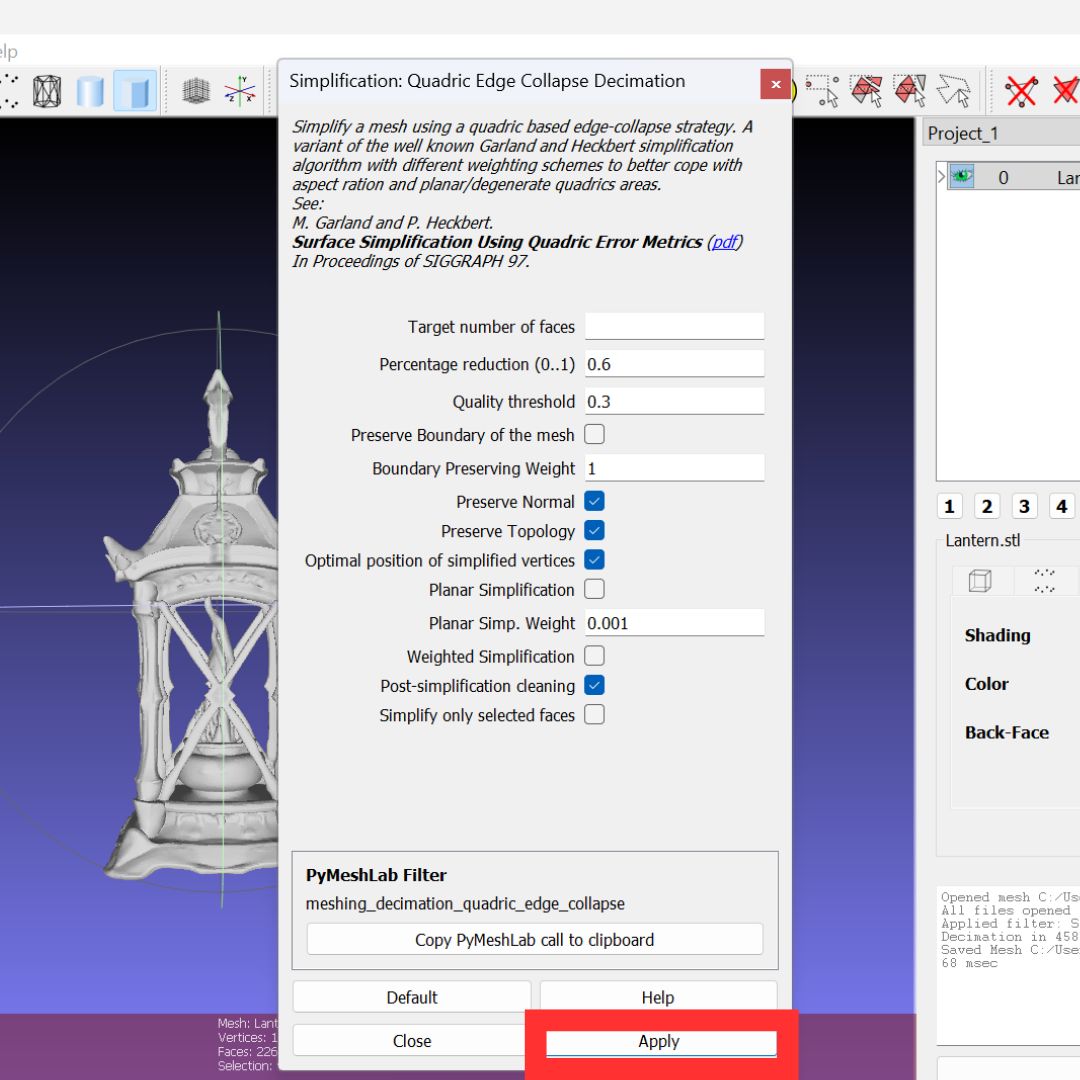
The most reliable method is mesh decimation, which reduces the number of triangles while preserving the overall shape.
This is one of the most powerful and widely used decimation tools available.
Inside the decimation tool, you can tweak parameters to control how much the mesh is reduced.
👉 The goal is simple:
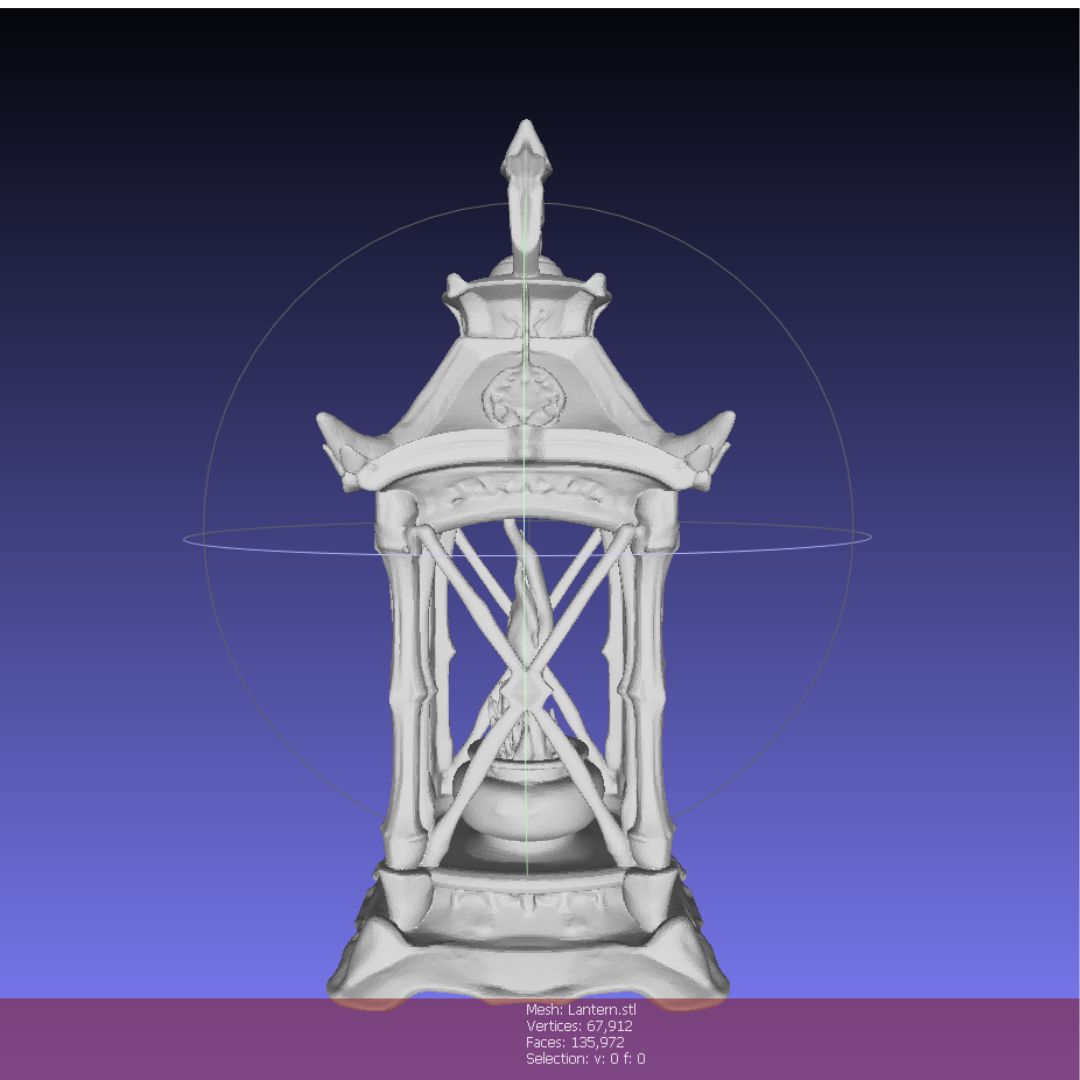
Make the file smaller, without visibly changing the design
Pro Tip💡
The decimation tool in MeshLab is one of the best available, even compared to many paid tools. If you’ve been working with 3D files for a while, you’ll likely find it becomes your go-to method for optimization.
It also works for OBJ, 3MF and other mesh files.
After decimation, you’ll typically see:
However, be careful with:
If you push too far, you may lose critical detail.
STL compression isn’t about “zipping” a file, it’s about optimizing geometry.
By reducing unnecessary polygons, you:
And once you’ve done it a few times, it becomes a 30-second step in your process.
Upload your optimized STL file and get an instant quote for custom metal casting in gold, silver, and more.
The most effective way is mesh decimation, which reduces the number of triangles in your model. Tools like MeshLab offer powerful simplification algorithms that can significantly reduce file size without visibly affecting quality.
It can, but if done correctly, the difference is usually not noticeable.
A reduction of 30–70% in polygon count is often safe for most models. Always check fine details like engravings or sharp edges.
We have a max file size of 100mb per upload.
STL files become large when they contain too many polygons (triangles). This often happens when exporting from sculpting tools or using high-resolution scan data.
There’s no strict limit, but most workflows benefit from:
Smaller, clean files are easier to process and less error-prone.
While STL is the most common format, similar techniques work for:
However, STL remains the standard for our workflows.

